Tutorial 7 of 8
Settings, accessibility and older devices
Beginner 4 min
Adjust aiming help and the stroke limit, switch on high contrast, calm mode or the flat top view, turn sounds off and help older phones run smoothly.
Settings opens everything you can adjust. Most settings belong to the game and travel with game files and links; calm mode and the flat view belong to this browser.
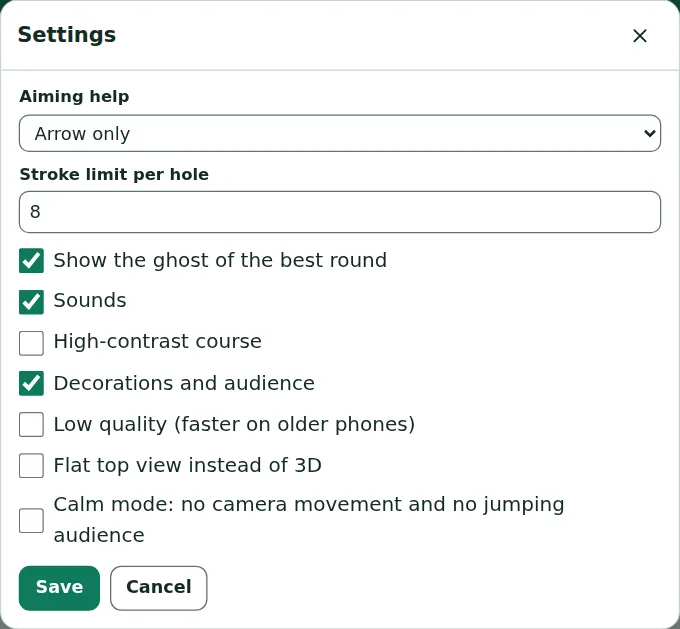
Help with aiming
- Aiming help: the line up to the first bounce, the arrow only, or no help.
- Stroke limit per hole: from 3 to 15 strokes; after that the ball is picked up.
- Show the ghost of the best round: on or off.
Seeing the course clearly
High-contrast course paints the green dark grey, the walls bright yellow and the obstacles in strong colours, makes the ball bigger and leaves out the decorations and the audience:
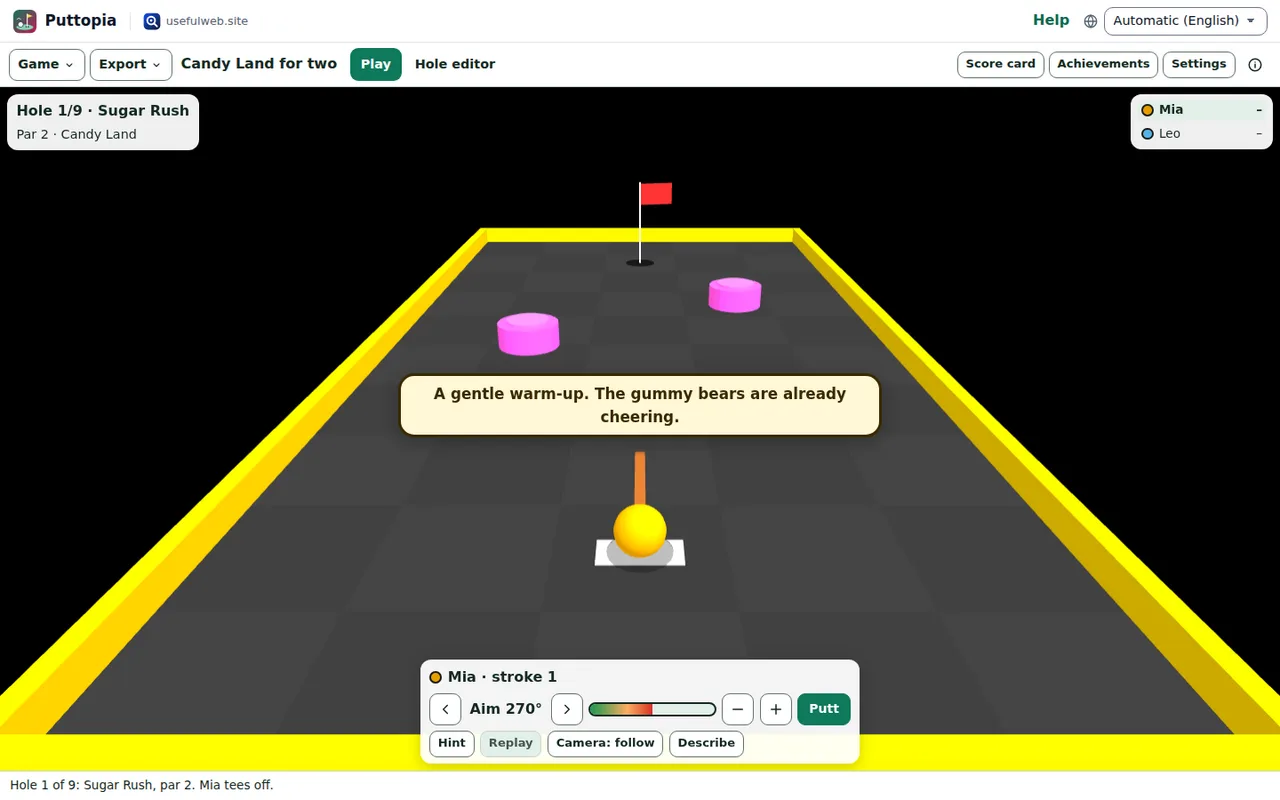
The ball colours stay colour-blind-safe in every mode, and the hole card, the player list and the controls always use the page's light or dark theme.
Calm mode and reduced motion
Calm mode stops camera swings, the orbiting podium and the jumping audience. Puttopia turns it on by itself when your system asks for reduced motion.
Sounds
Sounds are made by your browser on the fly — a putt, bonks, a splash, cheers and a sad trombone. They start only after your first putt, never on their own. Sounds switches them off.
Older phones and no 3D
- Low quality draws fewer details and no decorations — choose it when the game stutters.
- Decorations and audience can also be switched off on its own.
- Flat top view instead of 3D draws the course from above, like a map. If your browser has no 3D graphics (WebGL) at all, Puttopia uses this view by itself and says so.
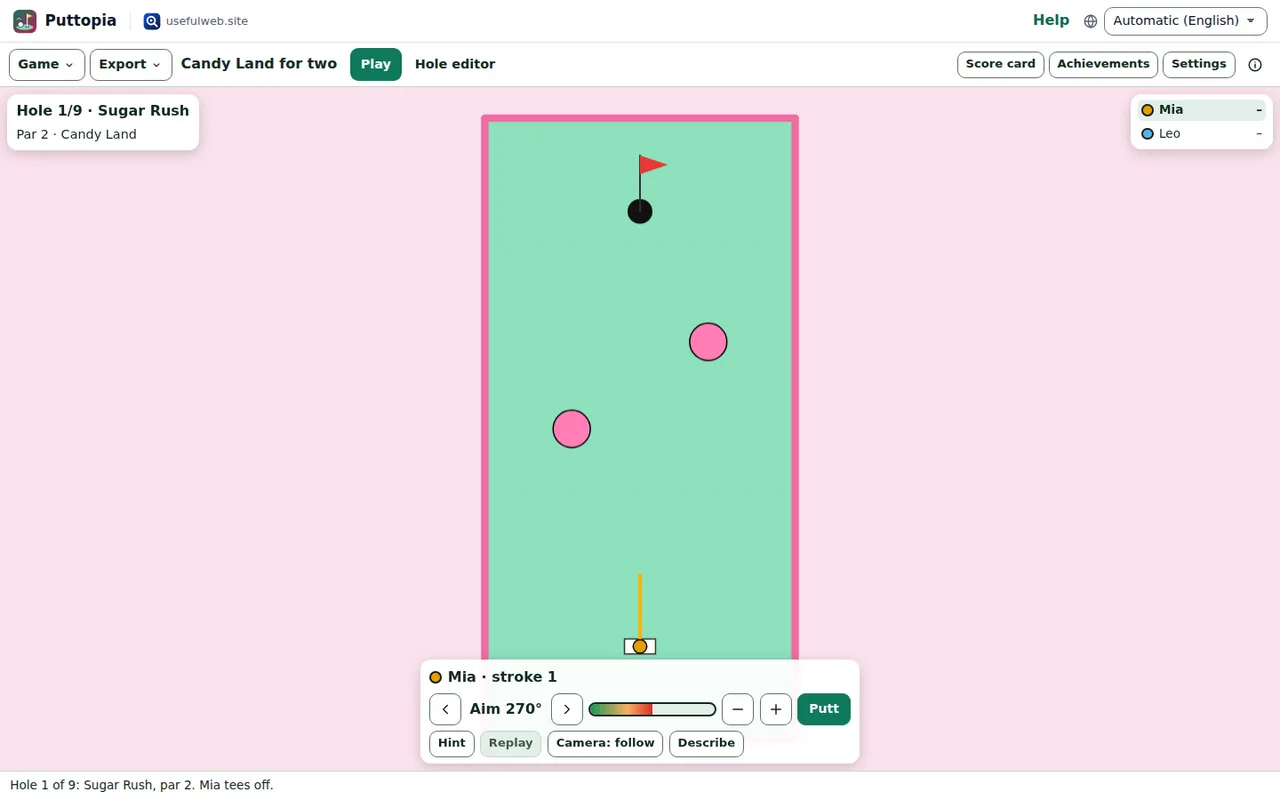
All controls work with the keyboard and screen readers in every view; Describe (D) reads out the hole at any time.
Ready to try it?